Windows 11 to Let Users Approve Camera and Microphone Access App by App
Microsoft is testing per-app privacy toggles in a Windows 11 Insider build, moving desktop software closer to the consent prompts phones have used for years.
Key points
- Microsoft is testing per-app camera, microphone and location controls in Windows 11 Insider Experimental Preview Build 26340.9233.
- Until now, one device-wide switch decided whether all traditional desktop apps could reach the camera or microphone.
- The change sits inside Microsoft's "Windows Baseline Security Mode" and "User Transparency and Consent" initiatives announced in February.
- Rollout is phased, and Microsoft says it will adjust the controls based on Insider feedback before any general release.
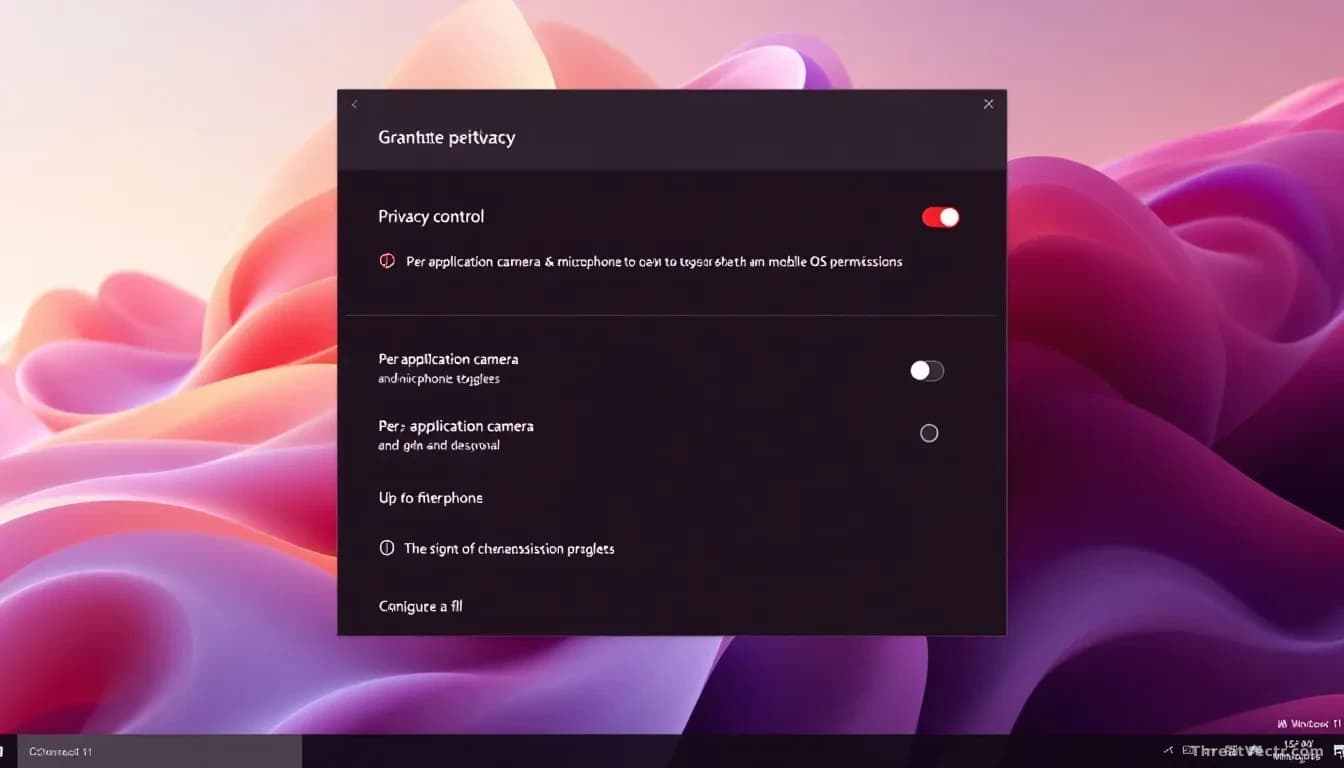
- Users manage the new permissions under Settings, Privacy and security, then Camera, Microphone or Location.
Microsoft is testing a change to Windows 11 that will let people decide, one program at a time, whether a desktop app can switch on the camera, listen through the microphone or read a precise location.
The feature is shipping to machines enrolled in Windows 11 Insider Experimental Preview Build 26340.9233. Insiders are volunteer testers who run early builds of Windows before the wider public gets them.
Until now, Windows treated older-style desktop apps as a single group. Turn the camera switch off and everything went dark. Turn it on and any installed program could ask. That's the behaviour this build replaces.
What actually changes for users?
Each traditional desktop app gets its own toggle for camera and microphone access, and a separate one for location, rather than sharing a single system-wide setting. Users find the new controls under Settings, then Privacy and security, then the Camera, Microphone or Location page.
Microsoft, in its notice to Insiders first reported by BleepingComputer, said the goal is "greater visibility into which apps are requesting access to sensitive resources and more control over your privacy choices."
The company also flagged a caveat worth reading carefully. Some apps rely on shared system components or run inside a browser frame, so they may show up under an unfamiliar name, or as "unsigned" if Windows cannot confirm who published them. Microsoft's advice: grant access only to apps you recognise and trust.
Why is Microsoft doing this now?
Microsoft said in February it wanted to bring smartphone-style consent prompts to Windows, after years of complaints about apps installing unwanted software or modifying core parts of Windows without asking. This is the third Windows 11 Insider build we've reported on in August alone, and the right-click and WMIC changes that landed on 18 August show a pattern: Microsoft is using Insider previews to push security and privacy changes fast.
Windows Platform engineer Logan Iyer said at the time that users "will receive clear prompts to grant or deny apps permission to access protected data and hardware," and will be able to revoke access later.
The work falls under two internal programmes, "Windows Baseline Security Mode" and "User Transparency and Consent." Both are rolling out in stages, with no date set for general availability.
How does this compare to phones?
Android and iOS have prompted users for camera and microphone access for more than a decade. Windows applied similar rules to apps from the Microsoft Store, but treated traditionally installed programs, the kind downloaded from a vendor's website, as a single bucket.
| Setting | Old Windows 11 behaviour | New Insider build |
|---|---|---|
| Camera access | One switch for all desktop apps | Per-app toggle |
| Microphone access | One switch for all desktop apps | Per-app toggle |
| Precise location | One switch for all desktop apps | Per-app toggle |
Should ordinary users do anything today?
Not yet. The controls exist only in an Insider preview, and some apps may still appear under confusing names. If you're not testing preview builds, nothing changes on your PC.
When the feature reaches the stable Windows 11 release, the practical step is straightforward. Open Settings, look at what has camera or microphone access, and revoke anything you don't recognise or don't use.
Common questions
Will this break apps I already use?
Apps that genuinely need the camera or microphone, like video-call software, will prompt you the first time. Grant access once and move on. Apps that were quietly using the microphone in the background may stop working until you approve them, which is exactly the point.
Does this apply to work laptops?
On managed devices, IT administrators can usually override or preset these permissions through Windows policy. Home users get the full choice. Employees should check with their IT team before changing anything on a work machine.