Six Phone Settings That Actually Protect Your Privacy
Most of us carry a small tracking device in our pockets and never adjust a single default. Here is what to switch on, what to switch off, and why it matters.
Key points
- Deleting unused apps removes hidden data collection that continues even when you never open them.
- Multi-factor authentication, a second login check sent to your phone or email, blocks most account takeovers even when a password is stolen.
- Location and ad-tracking settings are on by default on most phones and can be switched off in under two minutes.
- Keeping your operating system updated closes security gaps that criminals actively exploit.
Your phone knows your location, your bank details, your health records. Most of it ships with the least private settings already switched on, waiting for you to notice.
NBC News Tech recently covered the basics, and they're worth spelling out plainly.
What should I actually do first?
Start with two things: delete apps you no longer use, and turn on multi-factor authentication (MFA) for every account that matters.
Unused apps are a quiet problem. Something you downloaded for a festival two years ago may still run in the background, sending your location and browsing habits to a company you've forgotten exists. Deleting it stops that cold.
MFA is a second check when you log in, usually a short code sent to your phone or email. Even if a criminal gets your password, they can't get in without that second code. Enable it on your email first, then your bank, then everything else.
Which settings are tracking me right now?
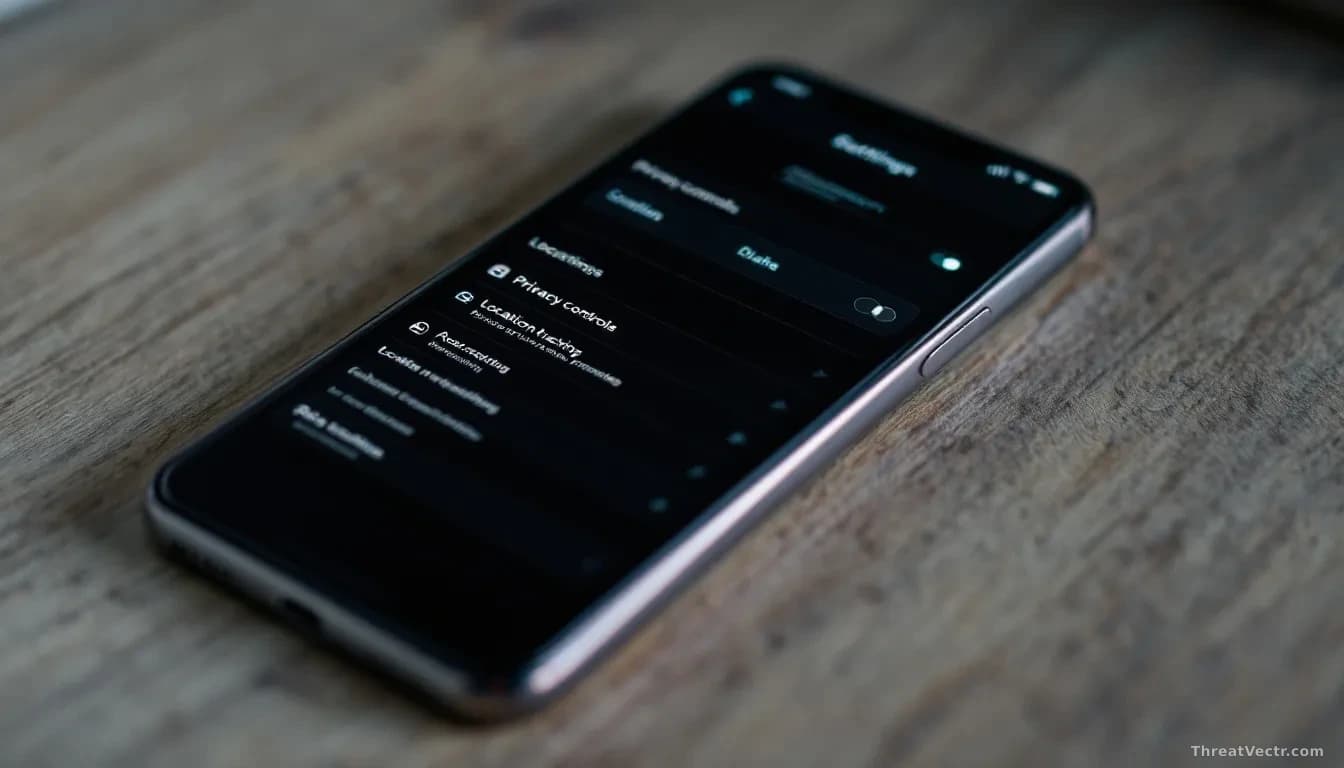
Probably more than you expect. Both Android and iPhone have a settings screen dedicated to location permissions. Many apps request "always on" location access when they only need it while you're actively using them. Change these to "only while using the app" or "never" for anything with no obvious reason to know where you are.
Advertising tracking is a separate switch. On iPhone it sits under Settings, then Privacy and Security, then Tracking. Android's path varies by manufacturer; look under Privacy in your main settings menu. Turning it off doesn't eliminate all ads, but it does stop your phone building a profile of your behaviour to sell to advertisers.
Should I be worried about my passwords?
Yes, but the fix is straightforward. Reusing the same password across multiple sites is the habit criminals rely on. When one site is breached and passwords leak, automated tools try those credentials on banks and email accounts within hours. That risk compounds when a password manager itself has a flaw: our August story found that a weakness in N-able's Passportal extension let any webpage silently drain a business's entire credential vault, which is a good reason to keep your manager updated as well as your phone.
Your phone's built-in option, iCloud Keychain on iPhone or Google Password Manager on Android, is free and works well for most people.
Software updates matter too. When your phone prompts you to install one, it's usually patching specific flaws that researchers or criminals have already found. Delaying leaves a known door unlocked.
Common questions
Will turning off tracking break apps I use every day?
Rarely. Maps and delivery apps need location while you use them, and the "while using" setting keeps that working. Restricting background tracking mainly affects advertising networks, not core features.
How long does all of this take?
A focused twenty minutes covers the main changes: delete old apps, enable MFA on email and your bank, review location permissions, turn off ad tracking. Updating your phone can run overnight on Wi-Fi.